
What is GoPlus?
GoPlus (GoPlus Network) is a decentralized security layer for Web3 that provides real-time risk identification and blocking for wallets, DApps, and multiple blockchains. Through security data & detection APIs, on-chain firewalls, a browser extension, and address monitoring, it detects token/contract risks and blocks suspicious approvals or malicious transactions—helping users and developers reduce phishing and mis-sign risks across the full transaction lifecycle and improve asset security and user experience.
Prerequisites
Before you start, make sure:
- Your imKey hardware wallet is powered on and unlocked.
- The imToken App is installed and set up on your phone, and your imKey is successfully paired.
- Both imKey firmware and the App are up to date.
- Network support: GoPlus currently supports Ethereum mainnet (ETH) and BSC.
- Desktop connection: Have the original imKey data cable, or ensure your USB cable supports data transfer (not charge-only).
Option 1: Connect imKey on a desktop
Step 1: Visit GoPlus and start the connection
- In your desktop browser, go to https://app.gopluslabs.io/.
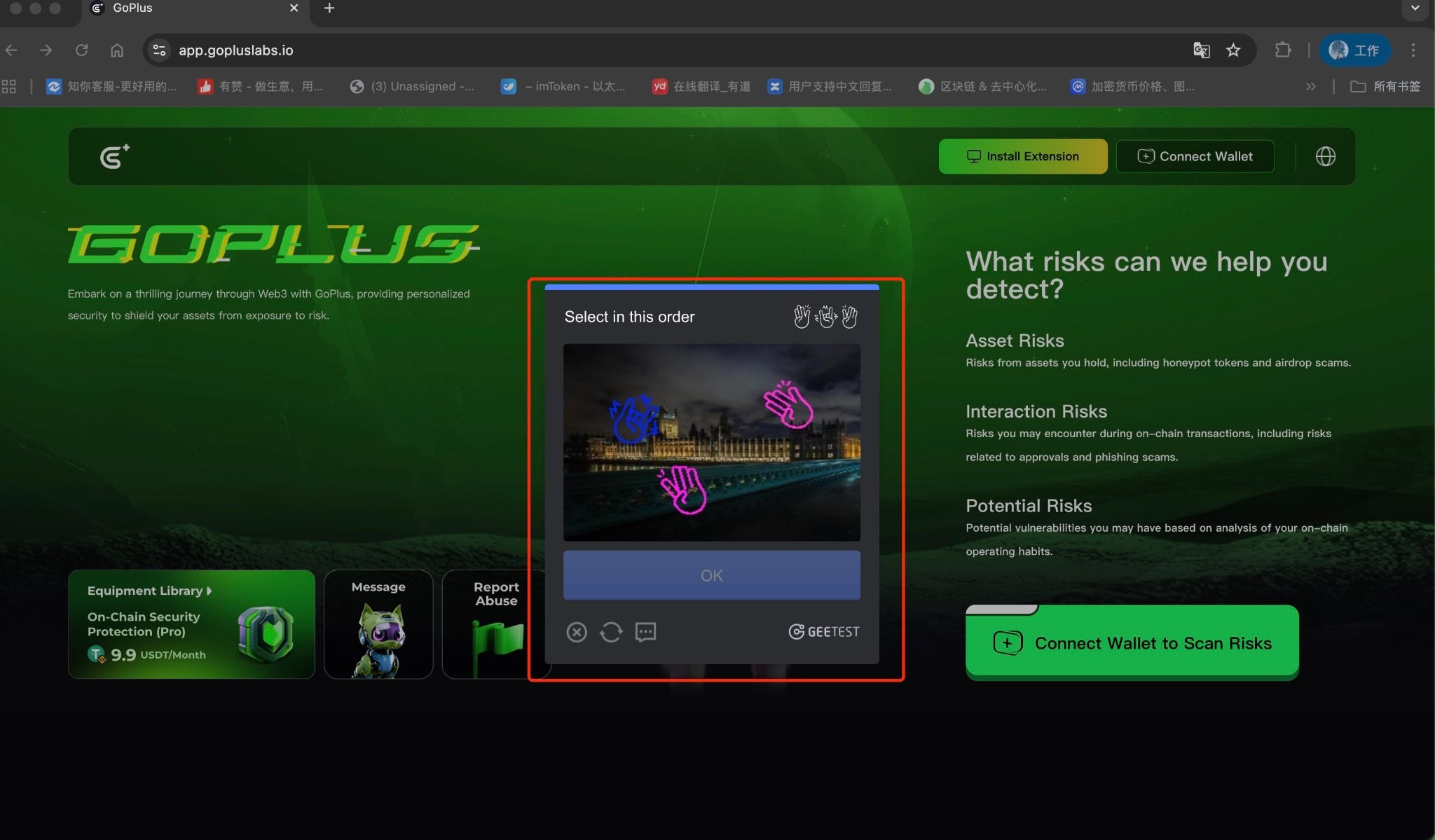
- Click Connect wallet to scan risks on the right panel.
- Complete the image verification (CAPTCHA) if prompted.
 Step 2: Select imKey
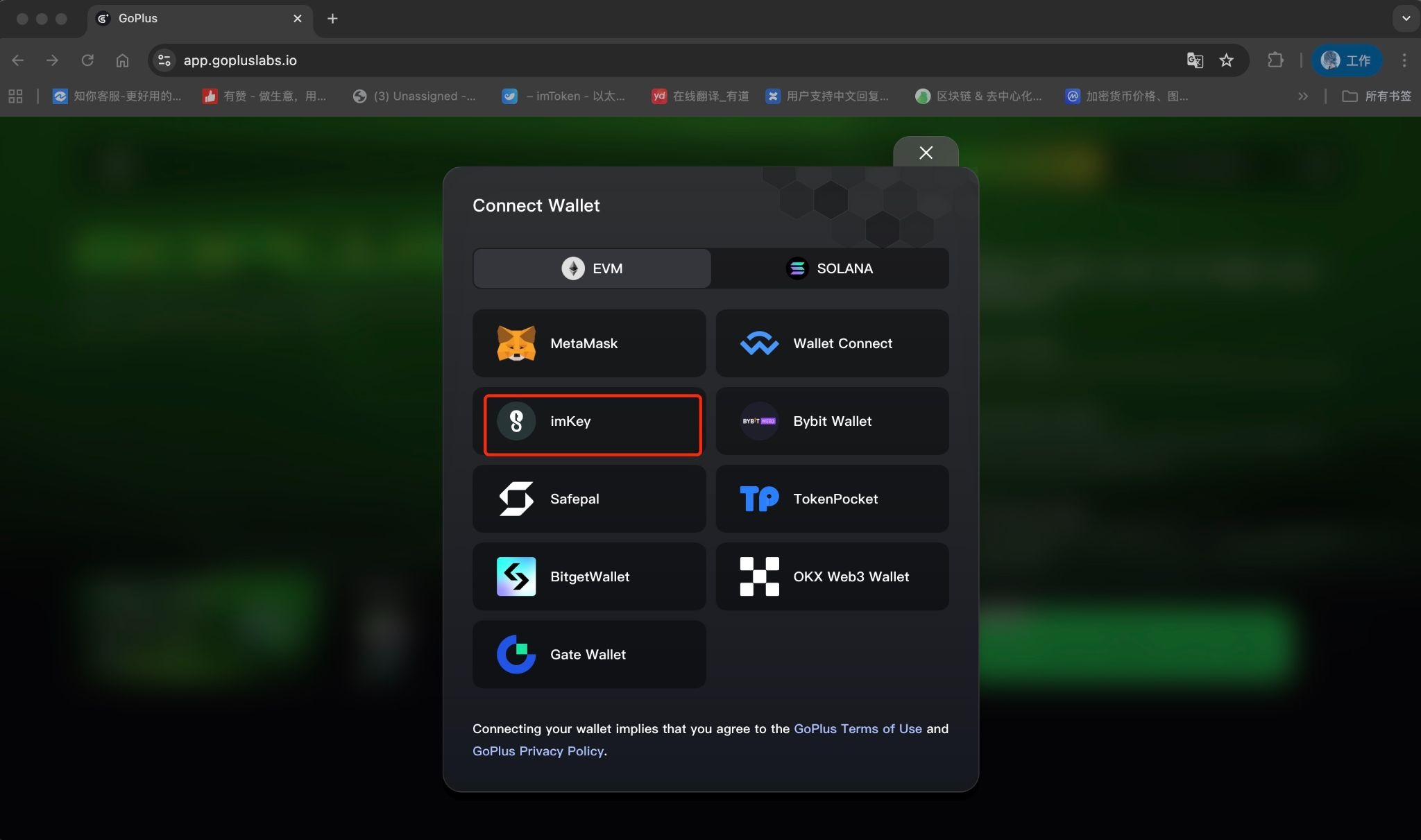
- When the wallet selection dialog appears, choose imKey.
 Step 3: Connect the device and authorize
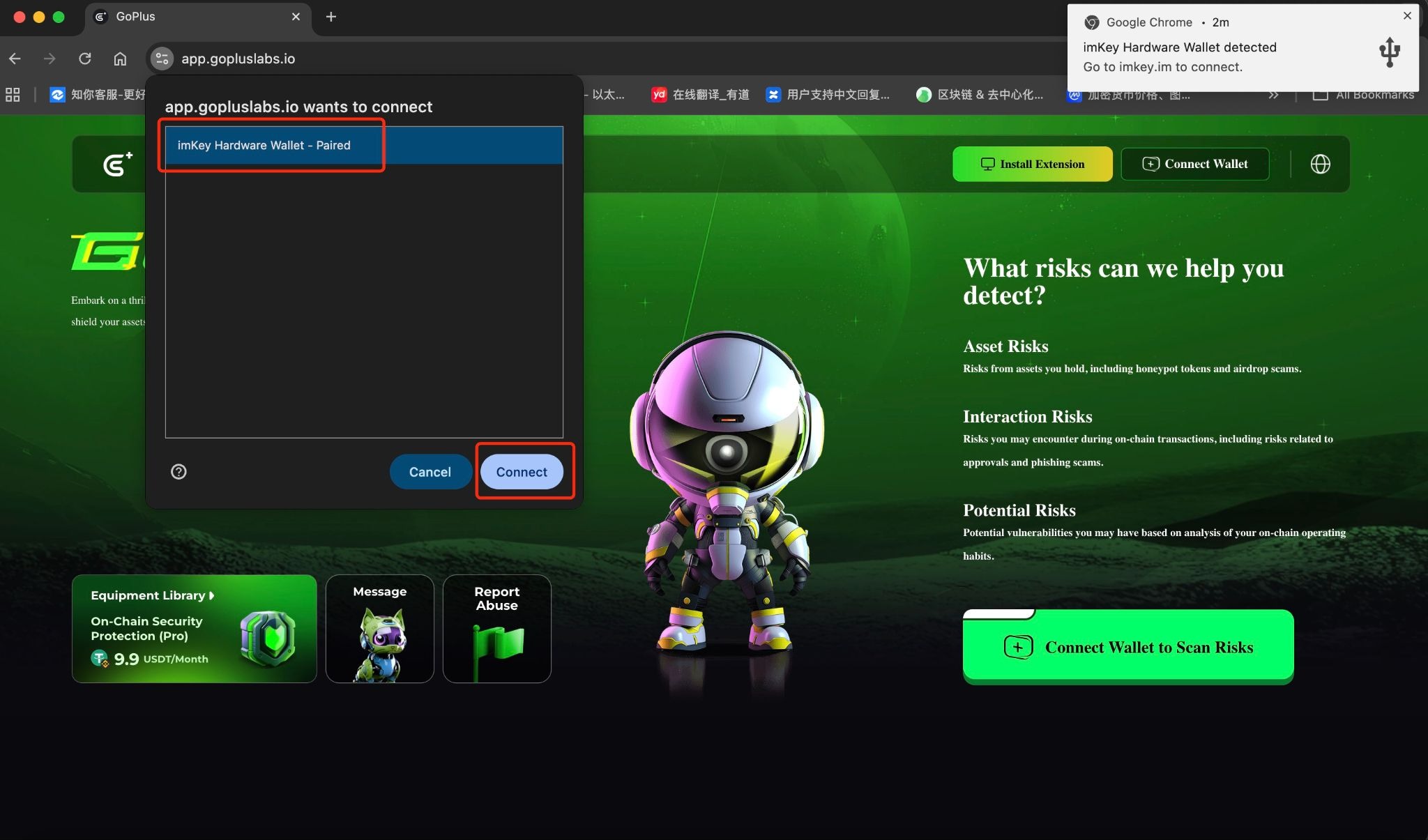
- Use the original imKey data cable to connect imKey to your computer, then enter your PIN on imKey.
- In the connection prompt, click Connect, and on the imKey screen press OK to authorize the connection.
 Step 4: Review your account security status
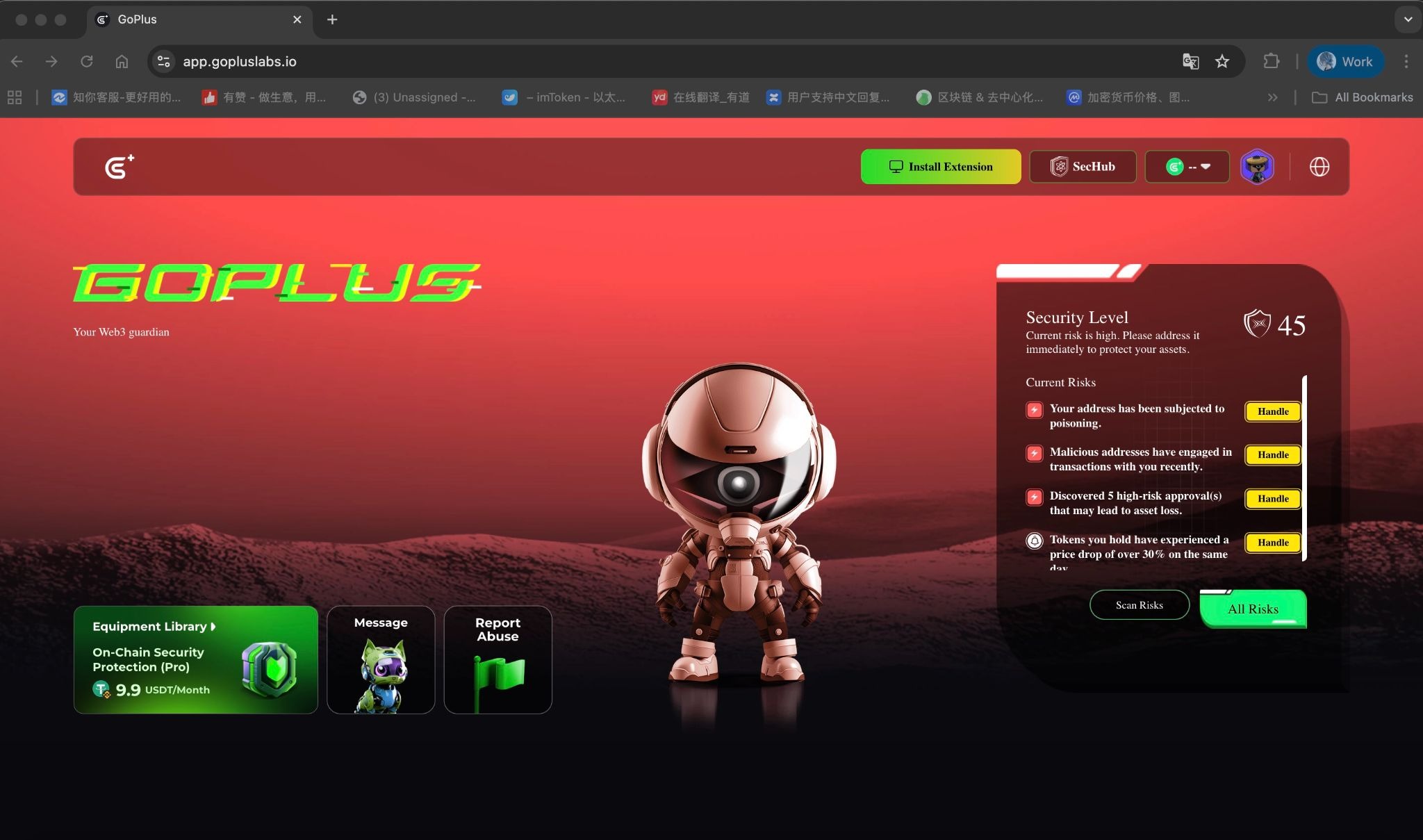
- After connecting, GoPlus will display your account status.
- Review current and potential risks. Click Rescan to refresh, or Handle to follow recommended actions.
 Option 2: Connect via the imToken in-app browser (mobile)
Step 1: Open the in-app browser
- In imToken, select your imKey ETH account.
- Tap Browser in the bottom navigation and enter: https://app.gopluslabs.io/.
Step 2: Open GoPlus and set language
- On the GoPlus page, tap the globe icon in the top-right and choose Simplified Chinese or your preferred language.
- Tap “Connect wallet to scan risks”. Complete the image verification (CAPTCHA) if prompted.
Step 3: Choose wallet and authorize
- Select “imToken ”as the wallet.
- When the authorization prompt appears, tap“ Confirm”.
Step 4: Request imKey confirmation
- On the signature screen, tap “Request confirmation from imKey”.
- On your imKey device, press OK to confirm the signature.
Step 5: View your Security Level
- After connecting, view your Security Level, or tap Rescan to run another check.
About “Security Level” and Risk Notices
1) How to interpret the Security Level
- It’s a point-in-time assessment based on on-chain public data and detection rules—meant to flag potential risks, not to definitively label an address as safe or unsafe.
- The level updates dynamically with your address activity and approvals; a single scan does not represent a long-term state.
- A higher level ≠ guaranteed loss; a lower level ≠ absolute safety. Always judge within your actual usage context.
2) How to read common risk prompts
- Approval risks: You may have granted high privileges (e.g., unlimited allowance) to a contract. Review regularly and revoke unnecessary approvals; prefer least privilege or one-time/limited allowances going forward.
- Address association / dusting: Your address is associated with high-risk addresses on-chain, or it received unsolicited small dusting transfers. This does not mean you engaged in risky actions, but be more cautious with future interactions.
- Behavior reminders: Short-term abnormal approvals or unusually frequent interactions are attention signals, not definitive risks.
3) What to do if high risks appear
- Pause first: Temporarily stop new signatures/approvals. Trust the imKey screen—if the device and page don’t match, cancel immediately.
- Verify sources: Use only official or trusted links and contract addresses. When needed, check project announcements, audits, or community discussions.
- Revoke before proceeding: Use approval-management tools to revoke unnecessary high-privilege approvals before continuing.
- Test small: For large transactions, first try a small amount to validate the path and fees, then scale up.
4) Boundaries & notes
- Security Levels and prompts rely on public data and rule engines and may contain false positives/negatives. Results are for reference only and do not constitute investment, financial, or legal advice.
- Connecting and authorizing do not involve your mnemonic or private keys; all critical actions require physical confirmation on imKey.
- If you still have questions, contact imKey or GoPlus official support for assistance.
Important Notice:imKey sells physical security hardware products only and does not provide any virtual asset trading, custody, or funds-related services. References to third-party wallets, exchanges, or decentralized applications are for compatibility purposes only; related functions and services are provided independently by third parties.
0 comments
Article is closed for comments.